Pandas Visualization That Actually Communicates
The Exploratory vs. Communication Gap
Most pandas tutorials teach you to make charts for exploration—quick plots to understand your data while you're knee-deep in analysis. That's valuable. But when it comes time to share your findings, exploration charts fall flat. They're dense, unlabeled, and require you standing next to them explaining what's going on.
The charts you show stakeholders need to work differently. They need to communicate a specific insight without you there to narrate. They need to be understood in seconds, not minutes. They need to answer "so what?" before anyone asks.
Here's how to bridge that gap.
Titles That Tell the Story
The single biggest improvement you can make to any chart is fixing the title. Most analysts write titles that describe the axes: "Revenue by Month" or "Customer Count Over Time." These titles are technically accurate but completely useless. They tell the reader what they're looking at without telling them what to think about it.
Good titles state the insight. Instead of "Revenue by Month," try "Revenue grew 40% in Q4, driven by enterprise deals." Instead of "Customer Count Over Time," try "We added 12,000 customers this year, 3x our 2023 pace."
Your title should answer the question "so what?" If someone sees only the title and nothing else, they should understand the takeaway. The chart itself is just the evidence.
Reduce Visual Noise
Default matplotlib has too much visual clutter. The frame, the tick marks, the gridlines—they all compete for attention with your actual data. Every element that isn't directly supporting your message is making your chart harder to read.
Clean it up ruthlessly. Remove the top and right spines—they're not doing anything useful. Make the remaining spines a subtle gray instead of black. Add gridlines only on the axis that matters, and make them light and dashed so they recede into the background. Your data should be the loudest thing in the room.
import matplotlib.pyplot as plt

fig, ax = plt.subplots(figsize=(10, 6))
ax.plot(dates, values, linewidth=2, color='#2563eb')

ax.spines['top'].set_visible(False)
ax.spines['right'].set_visible(False)
ax.spines['left'].set_color('#e5e7eb')
ax.spines['bottom'].set_color('#e5e7eb')
ax.yaxis.grid(True, linestyle='--', alpha=0.3)
ax.set_axisbelow(True)
ax.tick_params(colors='#6b7280')

plt.tight_layout()
plt.show()
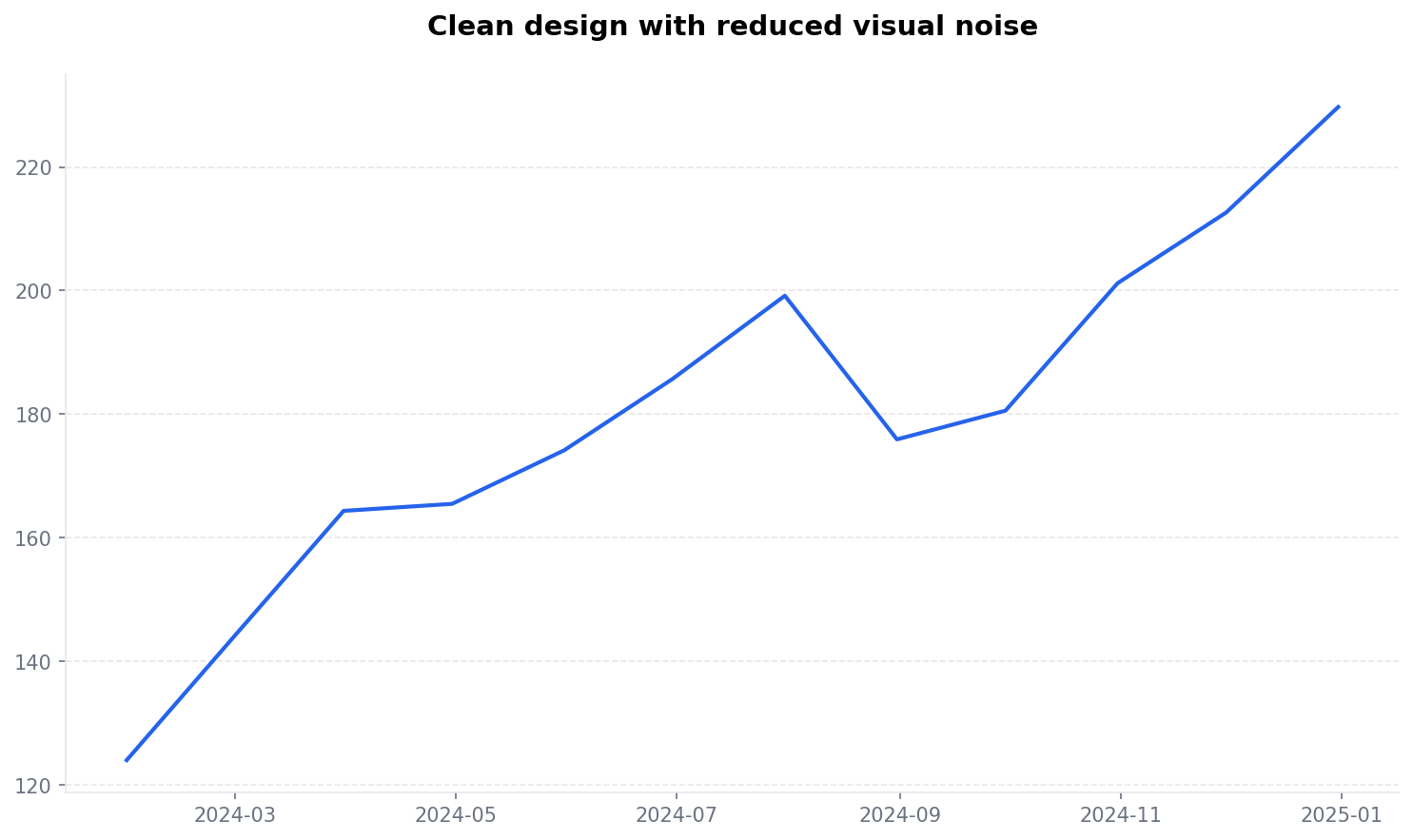
This takes about thirty seconds to set up and makes every chart you produce look dramatically more professional.
Use Color With Purpose
Color is powerful, which is why most people misuse it. The default behavior is to give every series a different color because matplotlib does that automatically. But color should have meaning. It should draw attention to specific things, group related items, or encode intensity.
When you're making a bar chart, consider making most bars a neutral gray and highlighting just the one that matters in a bold color. This immediately tells the viewer where to look. They don't have to scan all the bars to find the important one—you've done that work for them.
colors = ['#e5e7eb'] * len(df)
colors[df['revenue'].idxmax()] = '#2563eb'
ax.bar(df['month'], df['revenue'], color=colors)
ax.set_ylim(bottom=0)  # Always start bar charts at zero
ax.set_title('December had the highest revenue')
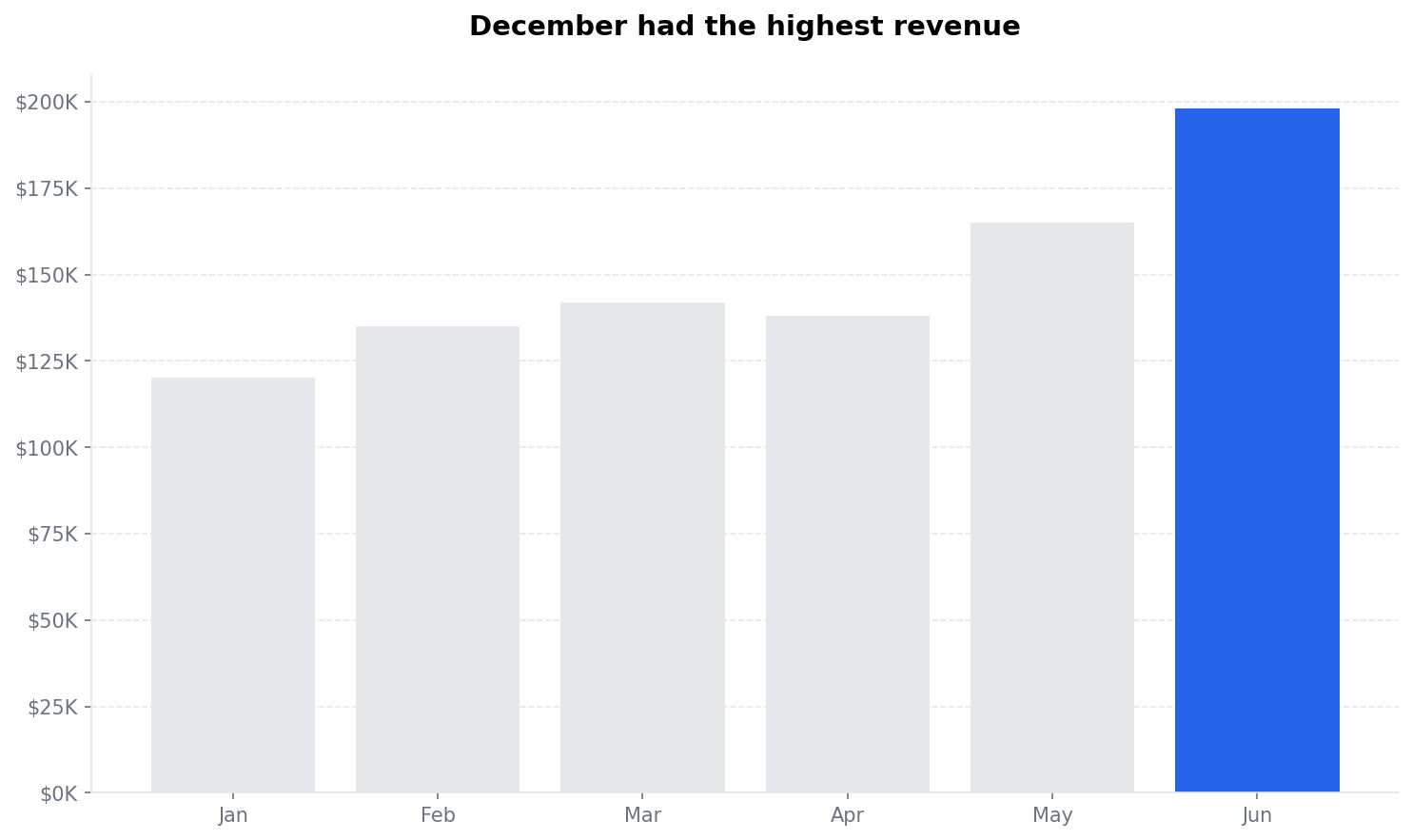
The highlighted bar now pops out. The chart tells a story instead of presenting a puzzle.
Annotate Key Points
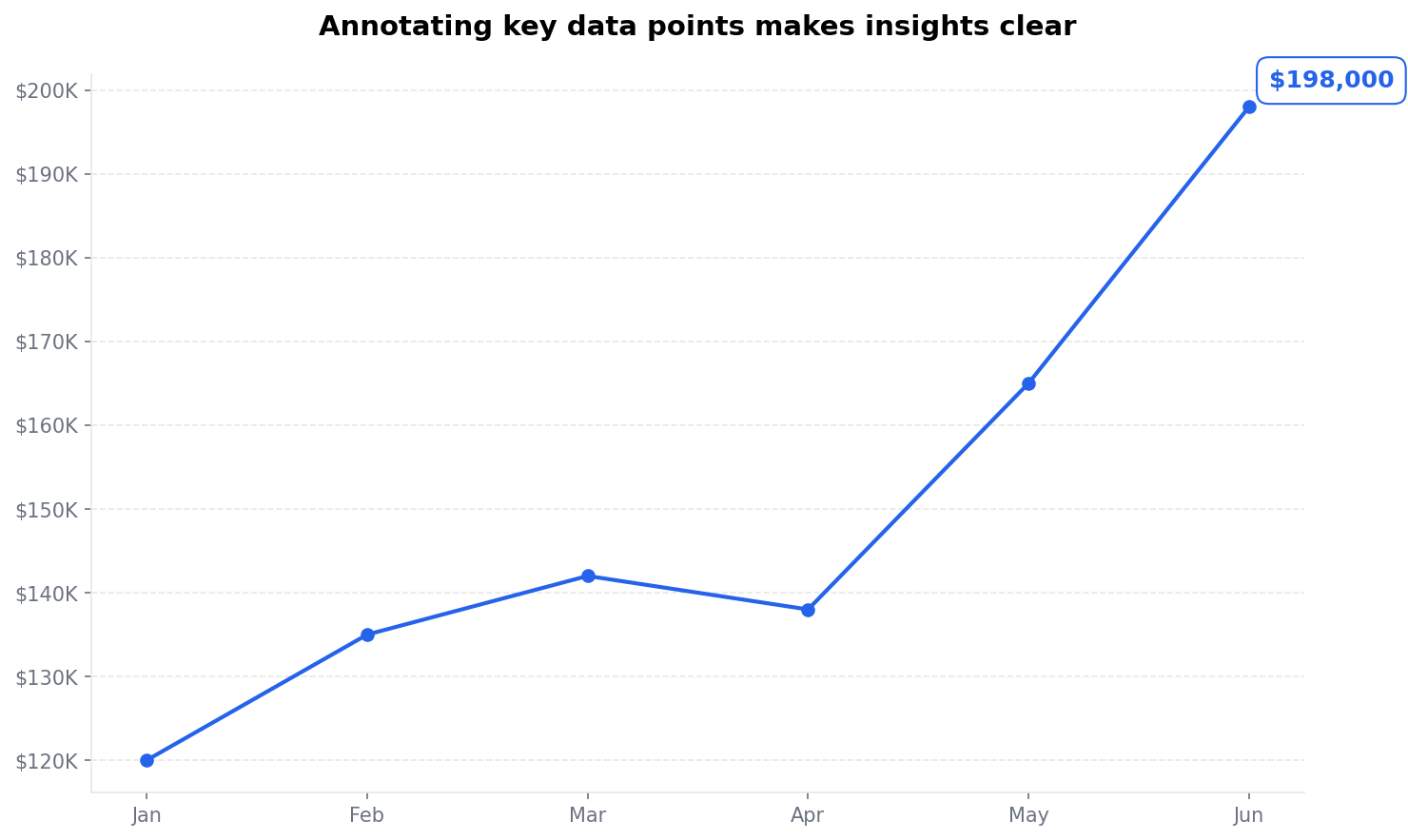
Don't make readers hunt for the important numbers. If there's a specific value that matters—a peak, a threshold, a target—put it directly on the chart. Annotations turn passive viewing into active understanding.
This is especially important for charts that will be viewed without you there to explain them. The annotation does the explaining for you. It says "this is the number you should remember" without you having to be in the room.
max_val = df['revenue'].max()
max_idx = df['revenue'].idxmax()

ax.annotate(
    f'${max_val:,.0f}',
    xy=(max_idx, max_val),
    xytext=(10, 10),
    textcoords='offset points',
    fontsize=12,
    fontweight='bold',
    color='#2563eb'
)
Start Bar Charts at Zero
This is non-negotiable: bar charts must start at zero. When the y-axis doesn't start at zero, the relative heights of the bars become misleading. A bar that looks twice as tall as another might only represent a 10% difference in the actual values.
The visual encoding of a bar chart is based on length. Our brains automatically compare the full length of the bars, not just the portion above some arbitrary baseline. If you don't start at zero, you're lying with the visualization even if the numbers are accurate.
Line charts are different—they're showing trends and changes over time, and starting at zero can actually obscure important patterns. But for bar charts, zero is the only honest baseline.
# Always set the lower limit to 0 for bar charts
ax.set_ylim(bottom=0)
Choose the Right Chart Type
This sounds obvious but it trips people up constantly. Different data types call for different chart types. Trends over time work best as line charts—the connected line implies continuity and progression. Comparisons across categories work best as bar charts, with horizontal bars if you have more than six or seven categories. Distributions call for histograms or box plots. Relationships between two variables need scatter plots.
When in doubt, use a bar chart. They're the most universally readable chart type. Almost everyone intuitively understands that taller bars mean bigger numbers. You can't say the same for scatter plots or area charts.
Pie charts are almost never the right choice. They're hard to read accurately, they don't work with more than four or five slices, and they make comparison difficult. A simple bar chart conveys the same information more clearly in almost every case.
Format Numbers for Humans
Raw numbers are hard to read. Nobody wants to see 14832947.234891 on a chart axis. The cognitive load of parsing that number takes away from understanding the actual insight.
Round aggressively and add units that make sense for the magnitude. If your numbers are in millions, show them as $14.8M instead of $14,832,947. If they're percentages, show one decimal place at most. Use thousands separators. Add currency symbols where appropriate.
ax.yaxis.set_major_formatter(
    plt.FuncFormatter(lambda x, p: f'${x/1e6:.1f}M')
)
Your stakeholders will thank you, even if they don't consciously notice the difference.
Export at the Right Size
Charts that look good in Jupyter often look terrible in reports. The default figure size is too small for presentations and too large for inline embedding. Font sizes that look fine on your screen become unreadable when projected.
Set explicit figure sizes and DPI values. For reports and briefs, figsize=(10, 6) with dpi=150 is a solid starting point. For wide presentations, go wider: figsize=(14, 5). Test your charts at the size they'll actually be viewed.
A Complete Example
Here's what all of this looks like put together—a chart that's designed to communicate, not just to display:
import pandas as pd
import matplotlib.pyplot as plt

df = pd.DataFrame({
    'month': ['Jan', 'Feb', 'Mar', 'Apr', 'May', 'Jun'],
    'revenue': [120000, 135000, 142000, 138000, 165000, 198000]
})

fig, ax = plt.subplots(figsize=(10, 6))

colors = ['#94a3b8'] * 5 + ['#2563eb']
bars = ax.bar(df['month'], df['revenue'], color=colors)

ax.spines['top'].set_visible(False)
ax.spines['right'].set_visible(False)
ax.spines['left'].set_color('#e5e7eb')
ax.spines['bottom'].set_color('#e5e7eb')
ax.yaxis.grid(True, linestyle='--', alpha=0.3)
ax.set_ylim(bottom=0)  # Critical: bar charts must start at zero

ax.yaxis.set_major_formatter(
    plt.FuncFormatter(lambda x, p: f'${x/1000:.0f}K')
)

ax.set_title('Revenue hit $198K in June — up 65% from January',
             fontsize=14, fontweight='bold', pad=20)

ax.annotate('$198K', xy=(5, 198000), xytext=(5, 210000),
            fontsize=12, fontweight='bold', color='#2563eb',
            ha='center')

plt.tight_layout()
plt.show()
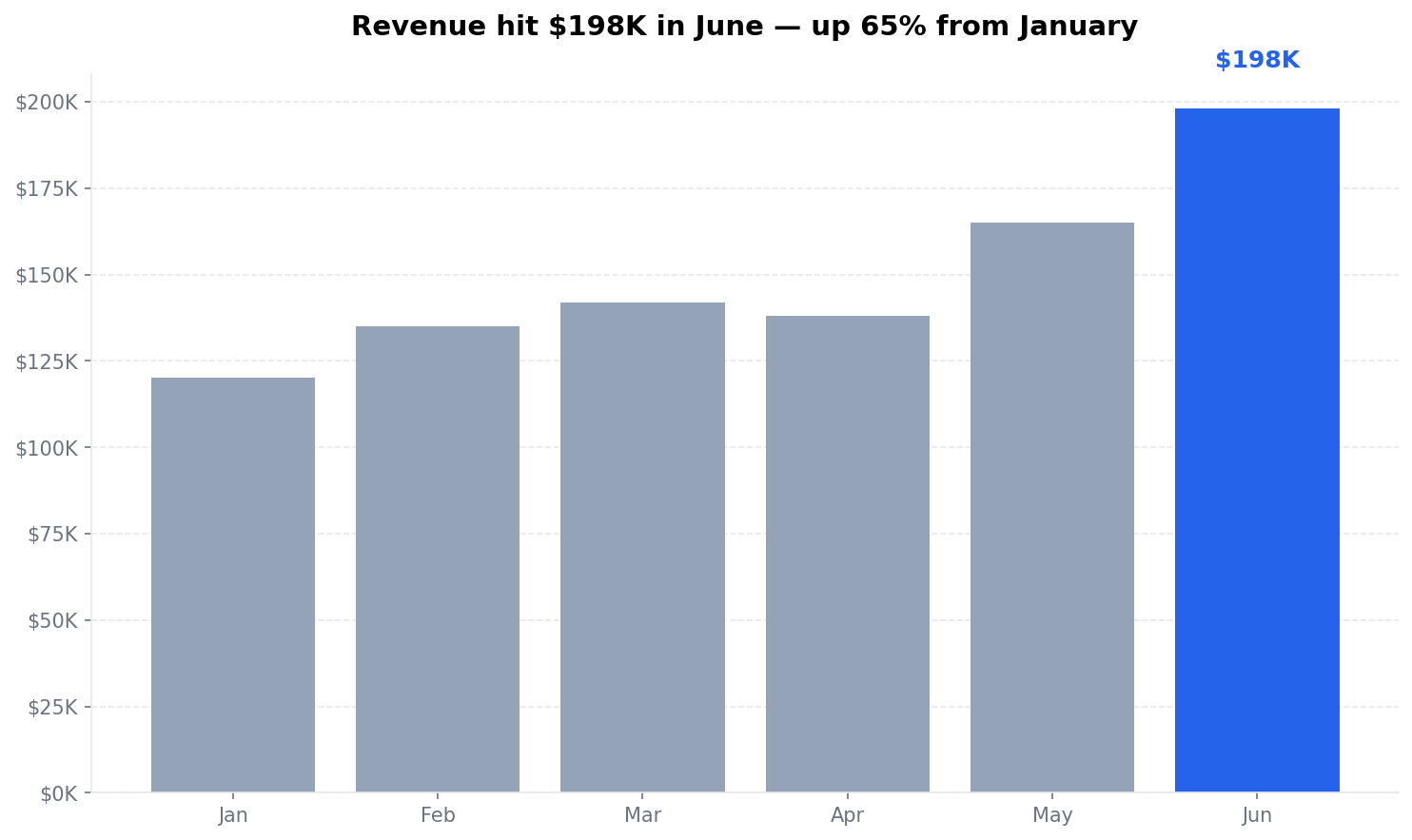
The chart has a story to tell. The title says it. The color highlights it. The annotation reinforces it. A stakeholder glancing at this for five seconds understands the message.
The Output Is the Deliverable
In Margin, the chart you make in your notebook is the chart stakeholders see. When you promote an output to a brief, it goes directly—no screenshots, no format conversion, no hoping the resolution holds up.
This means the time you spend making charts look good pays off directly in your final deliverable. There's no lossy export step where your careful formatting gets mangled. What you see is what they get.
Want charts that stay connected to your analysis? Try Margin free and see how briefs work.